Extension Details

- Fresh Files
- by gingerbeardman
- 64 Recent Installs | 95 Total Installs
- An alternative file browser sidebar that shows only recently modified files
- Repository
- Bug Reports
-
 Read & Write Files
-
 Launch Subprocesses
-
 Read & Write Clipboard
-
This extension is allowed to:
Readme
Fresh Files provides a sidebar that shows only recently modified files, helping you focus on the files you're actively working on.
In Git repositories it uses git status and git log. In non-Git workspaces it falls back to filesystem modification times, so it works in any folder.
Ideal if the Files sidebar is too much, or you lose track of your work immediately after a commit.
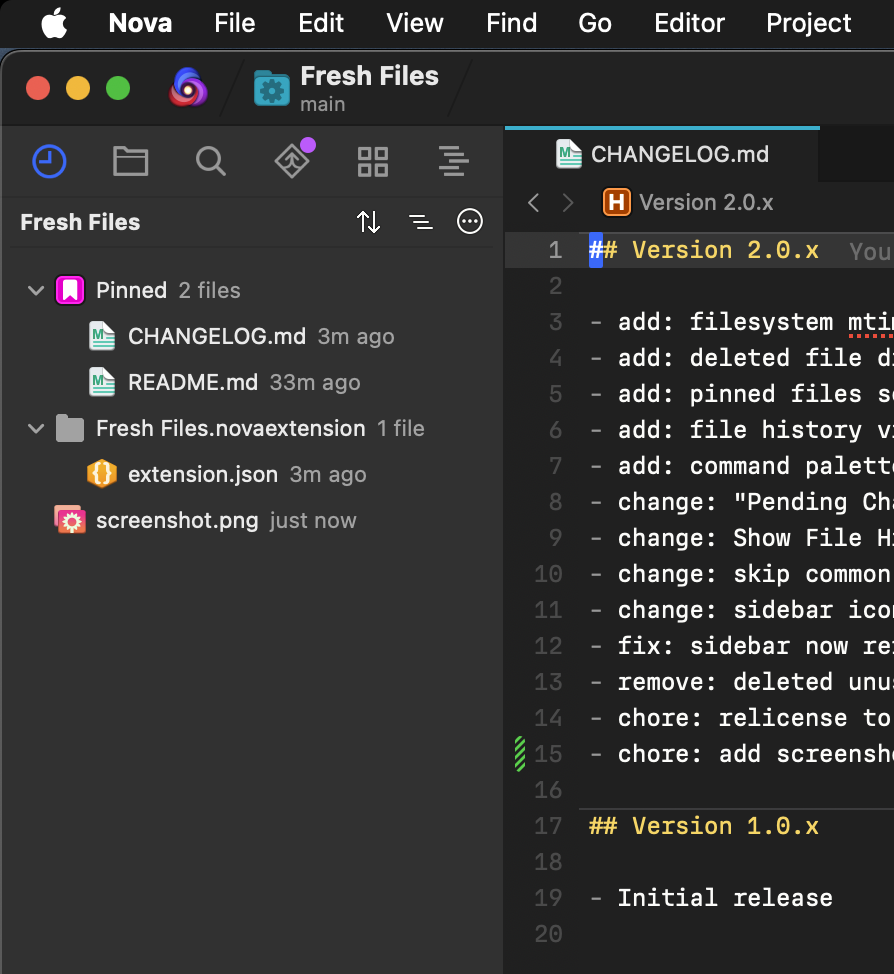
Inspired by Fresh File Explorer for VS Code.
Usage
- Select the View > Sidebars > Show All Sidebars menu item
- Click the Fresh Files sidebar icon
For more frequent access you can drag the Fresh Files icon to:
- the Sidebar Dock for toggling between sidebars
- a window edge to have a split sidebar
Sidebar Header Buttons
- Sort — toggle between most recent first and alphabetical order
- Flat/Tree — toggle between a flat file list and a directory tree
- Time Window — pick which time period to show
- Show All — temporarily show all tracked files, overriding the time window
Time Window
Fresh Files has two modes:
- Pending Changes — in Git repos shows uncommitted files from
git status; in non-Git workspaces shows files modified in the last day - Historical — shows files modified within a time window (1 hour to 180 days) using
git logor filesystem timestamps
Features
- Works in any workspace — Git or non-Git
- Pin files to keep them visible regardless of time window
- Search Fresh Files — full-text search across fresh files from the command palette
- Show File History for any file (Git repos only)
- Diff Search (Pickaxe) — find commits where a string was added or removed
- Line History — view git history for a line or selection
- Exhume — view deleted file contents with syntax highlighting
- Resurrect — restore deleted files to their original location
- Move to Trash — delete files from the sidebar context menu
- New File — create a new file from the sidebar
- Show All Files — temporarily show all tracked files
- Directory tree with collapsed single-child directories
- Flat list mode (default) showing filenames with relative path as tooltip
- Sort by recency (newest first, default) or alphabetically
- Layout and sort preferences remembered per workspace
- Relative time display ("2h ago", "3d ago")
- Add to Ignored — quickly hide files or folders from the sidebar via ignored patterns
- Add to .gitignore — append files or folders to your .gitignore from the context menu
- Deleted file indicators
- File count on directories
- Auto-refresh on file changes
Context Menu
Right-click on any file to:
- New File
- Move to Trash
- Show in Finder
- Copy Path / Copy Relative Path
- Pin File / Unpin File
- Add to Ignored / Add to .gitignore
- Show File History
- Exhume / Resurrect (deleted files only)
- Diff Search
Command Palette
- Refresh Fresh Files
- Set Time Window
- Cycle Time Window
- Toggle Sort Order
- Toggle Layout (Flat/Tree)
- Quick Open Fresh File
- Search Fresh Files
- Diff Search (Pickaxe)
- Line History
Configuration
Per-workspace settings are available in Project > Project Settings > Fresh Files:
- Time Window — which time period to show
- Ignored Patterns — glob patterns for files to hide
- Pinned Files — files pinned to always appear in the sidebar
Release Notes
Version 3.0.x
- add: Exhume — view deleted file contents with syntax highlighting (context menu on deleted files)
- add: Resurrect — restore deleted files to their original location (pending via git checkout, historical via write-to-disk)
- add: Diff Search (Pickaxe) — find commits where a string was added or removed, file-scoped from sidebar or repo-wide from command palette
- add: Line History — view git history for the current line or selection from the command palette
- add: New File — create a new file from the sidebar context menu
- add: Show All Files — toggle to temporarily show all tracked files, overriding the time window filter
- add: Search Fresh Files — full-text search across fresh files from the command palette
- add: context menu options to ignore files and folders via "Add to Ignored" or "Add to .gitignore"
- add: Move to Trash — delete files and folders from disk via the sidebar context menu
- add: Move to Trash — folders are trashed whole if they contain only changed files, otherwise just the changed files are trashed
Version 2.0.x
- add: filesystem mtime fallback for non-Git workspaces — Fresh Files now works in any folder
- add: deleted file display with distinct icon and "deleted" label
- add: pinned files section that persists across time window changes
- add: file history via right-click context menu, showing commit list with diffs
- add: command palette entries: Toggle Sort Order, Toggle Layout, Cycle Time Window, Quick Open Fresh File
- change: "Pending Changes" falls back to a 1-day mtime window in non-Git mode
- change: Show File History shows an informative message when no Git repository is available
- change: skip common non-project directories (node_modules, build, .git, etc.) during filesystem scan
- change: sidebar icons have been redone to match extension icon and are now antialiased
- fix: sidebar now refreshes after external git commits, checkouts, and merges
- fix: add missing clipboard entitlement for copy path commands
- remove: deleted unused layout sidebar button icon
- chore: relicense to LGPL-3.0
- chore: add screenshot
Version 1.0.x
- Initial release