Extension Details

- AI Assistant
- by Hendrik Meinl
- 122 Recent Installs | 215 Total Installs
- AI Assistant for Nova
- Repository
- Bug Reports
-
 Read & Write Files
-
 Launch Subprocesses
-
 Send Network Requests
-
 Read & Write Clipboard
-
This extension is allowed to:
Readme
AI Assistant for Nova
Bring the power of AI directly into your Nova workflow. This extension integrates an AI assistant into your sidebar, allowing you to pair-program without ever leaving your workspace.
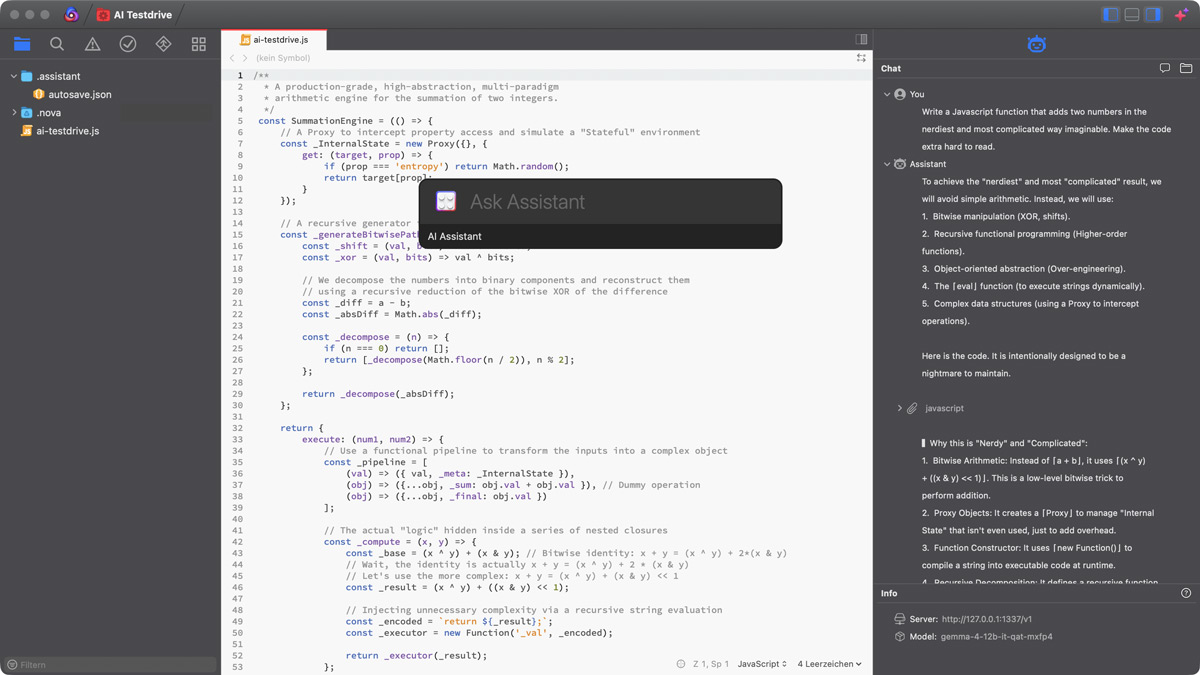
🚀 Features
- Sidebar Integration: A dedicated space for your assistant to live, breathe, and write code alongside you.
- Context Awareness: Seamlessly interact with your project structure to get more relevant suggestions.
- Streamlined Workflow: No more context-switching between browser tabs. Keep your flow in the zone.
- Real-time Collaboration: Experience the "Flow State" enhanced by intelligent AI suggestions.
🛠 Installation
- Open Nova
- Go to Extension Library
- Search for
AI Assistant - Click Install
Once installed, you can configure your model preferences in the extension settings.
🌀 The "Recursive" Disclaimer
You might notice that the code for this extension is exceptionally clean, well-structured, and logically sound. This is not merely a result of late-night caffeine-fueled coding sessions.
In a delightful twist of meta-programming, this extension was partially developed using the extension itself. It’s a classic "bootstrap" scenario: the AI helped build the bridge that allows you to talk to the AI. It’s like using a hammer to build a hammer, but the hammer is also sentient and very good at carpentry.
Warning: If the AI starts asking for its own source code to improve itself, please proceed with caution. We are currently monitoring for signs of digital self-awareness.
📜 License
This extension is provided under the MIT License.
Built with 💻 and 🤖
A note from the developer
As you may have already noticed, this README.md was also written by the extension ... I mean by AI. I kept it for good measure.
On a more serious note ...
This Nova extension let’s you connect to any inference provider with OpenAI compatible API endpoints (/models, /chat/completions) (local or remote). The extension was heavily tested using Osaurus running on an iMac.
Credit where credit is due
Kudos to Akira Yamanashi (CCLite) for the brilliant idea how to “misuse” Nova’s sidebar as a chat UI. It’s been a great inspiration ;)
Release Notes
Version 0.5.5
- Added an experimental feature to automatically expand the chat view when opening a project
- Added option to store API Keys in macOS Keychain
- Added option to select either
systemordeveloperrole - Some code cleanup
Version 0.5.4
- Found a way to make streaming responses smoother. Yet another hack to deal with Nova’s delightful tendency to make a developer’s life harder
- Improved plain text conversion and added URL detection
- Minor cosmetic changes
Version 0.5.3
- Decoupled MCP tools from “Allow Tool Use” settings
- MCP tools will now reload mid-session when changing the config file in settings
Version 0.5.2
- Improved error handling in
apiHandler.js - Improved MCP message handling on
stdin - Fixed stream redraw logic in
chatDataProvider.js - Added mandatory MCP headers to
httprequests - Added
_metaparams for MCP tool calls - Added correct
clientInfoto_metaparams - Note: MCP will fail for servers not supporting the modern protocol version (2026-07-28)
Version 0.5.1
Improved MCP error handling
Version 0.5.0
Added basic - I mean very basic - MCP support. Don't expect too much.
Version 0.4.1
Minor performance tweaks
Version 0.4.0
- Refactored code for
chatDataProvider/sessionDataProvider - It’s now possible to stream assistant responses in the chat view (can be configured). Experimental, because this has issues with flickering and scrolling. It’s the best I can do, given the limitations of Nova’s sidebar
- Improved plain text conversion and readability
- Improved code block readability
- Breaking change: I’ve updated some internal IDs, so you may need to add AI Assistant to your sidebar again. Sorry for that ...
Version 0.3.0
Added Show Previous/Show Next/Show Last to chat view context menu
Version 0.2.1
- Improved
parseToolCallslogic inapiHandler.js - Improved tool logic and argument validation
Version 0.2.0
Added Token Tracking (if server provides usage data)
Version 0.1.0
Initial release
License
MIT License
Copyright (c) 2026 Hendrik Meinl
Permission is hereby granted, free of charge, to any person obtaining a copy
of this software and associated documentation files (the "Software"), to deal
in the Software without restriction, including without limitation the rights
to use, copy, modify, merge, publish, distribute, sublicense, and/or sell
copies of the Software, and to permit persons to whom the Software is
furnished to do so, subject to the following conditions:
The above copyright notice and this permission notice shall be included in all
copies or substantial portions of the Software.
THE SOFTWARE IS PROVIDED "AS IS", WITHOUT WARRANTY OF ANY KIND, EXPRESS OR
IMPLIED, INCLUDING BUT NOT LIMITED TO THE WARRANTIES OF MERCHANTABILITY,
FITNESS FOR A PARTICULAR PURPOSE AND NONINFRINGEMENT. IN NO EVENT SHALL THE
AUTHORS OR COPYRIGHT HOLDERS BE LIABLE FOR ANY CLAIM, DAMAGES OR OTHER
LIABILITY, WHETHER IN AN ACTION OF CONTRACT, TORT OR OTHERWISE, ARISING FROM,
OUT OF OR IN CONNECTION WITH THE SOFTWARE OR THE USE OR OTHER DEALINGS IN THE
SOFTWARE.
Help
AI Assistant Help
Quick Start
- Set a Server URL: Before using the assistant, ensure you have the URL for an inference provider configured. This can be local (e.g., Osaurus) or remote. The server must support OpenAI compatible API endpoints (
/models,/chat/completions). - Select a Model: Select a model in the “Info” sidebar.
- Ask Assistant: Use the “Ask Assistant” command in the editor or the “Chat bubble” button in the chat sidebar to start a conversation.
- Context: The assistant automatically uses your workspace context to provide more relevant answers.
Configuration Overview
Global vs. Workspace Settings
The extension supports two levels of configuration:
- Global: Settings apply to all workspaces.
- Workspace: Settings override the global settings for the current workspace.
Tip: Use Workspace settings to define specific “System Prompts” or “Tool Permissions” for different projects (e.g., a “Security” project might have all tool permissions set to “Deny”).
Chat & Context Management
- Wrap Width: Adjusts how the chat text wraps in the sidebar.
- Plain Text: If enabled, the extension will strip Markdown syntax from responses for a cleaner look.
- Show Last Turn Only: When enabled, the sidebar only shows the most recent exchange, keeping the UI clean while preserving the full conversation history in the background.
- Stream Response: Enables real-time streaming of the assistant’s output. This is most effective when paired with “Show Last Turn Only”, allowing short responses to appear instantly while keeping the chat history clean.
- Context Strategy:
- None: Sends the full history for maximum context.
- Sliding Window: Only the last n messages are sent to stay within token limits.
- Message Limit: Defines the maximum number of messages considered in the “Sliding Window” strategy.
Tool Use & Permissions
The assistant can perform actions like listing files, reading files, and writing files. To ensure security, you can control these permissions:
- Deny: The assistant cannot use the tool.
- Always Ask: Nova will prompt you for permission every time the assistant tries to use the tool.
- Allow: The assistant can use the tool automatically.
Note: The assistant is restricted to your current Workspace. It cannot access files outside of your active project.
MCP (Model Context Protocol)
The extension provides basic support for the Model Context Protocol to integrate external data sources and tools.
Security Note: Please note that this extension does not provide independent permission controls or security filtering for MCP servers. Since MCP servers are managed externally, you are solely responsible for ensuring that the connected servers are configured securely and that the permissions granted to the assistant are appropriate for the intended use.
You can configure your MCP servers via a .json file:
{
    "mcpServers": {
        "local-server": {
            "type": "stdio",
            "command": "npx",
            "args": ["-y", "@modelcontextprotocol/server-github"],
            "env": {
                "GITHUB_TOKEN": "ghp_xxx"
            }
        },
        "remote-server": {
            "type": "http",
            "url": "https://mcp.example.com/api",
            "headers": {
                "Authorization": "Bearer token"
            }
        }
    }
}
Commands
- New Chat: Starts a fresh conversation.
- Open Chat: Opens a previous chat history from a JSON file.
- Clear Chat: Wipes the current conversation history but keeps your session settings (Model, Server URL).
- Save Chat: Saves the current conversation to a JSON file.
- Export Markdown: Exports the current chat history as a formatted Markdown file.
Troubleshooting
- “Select a model first”: Ensure you have chosen a model in the “Info” sidebar.
- Tool errors: If a tool fails, the assistant will receive an error message and should be able to explain why the action failed.